Help & Documentation
Everything you need to get started with LumenSky
Getting Started
- Download & Install - Download the DMG, drag LumenSky to Applications
- Launch - Open LumenSky from Applications (or Spotlight)
- Menu Bar - Look for the weather icon in your menu bar
- Choose a Scene - Click the icon and select any weather effect
- Enable at Login - Check "Open at Login" so it starts automatically
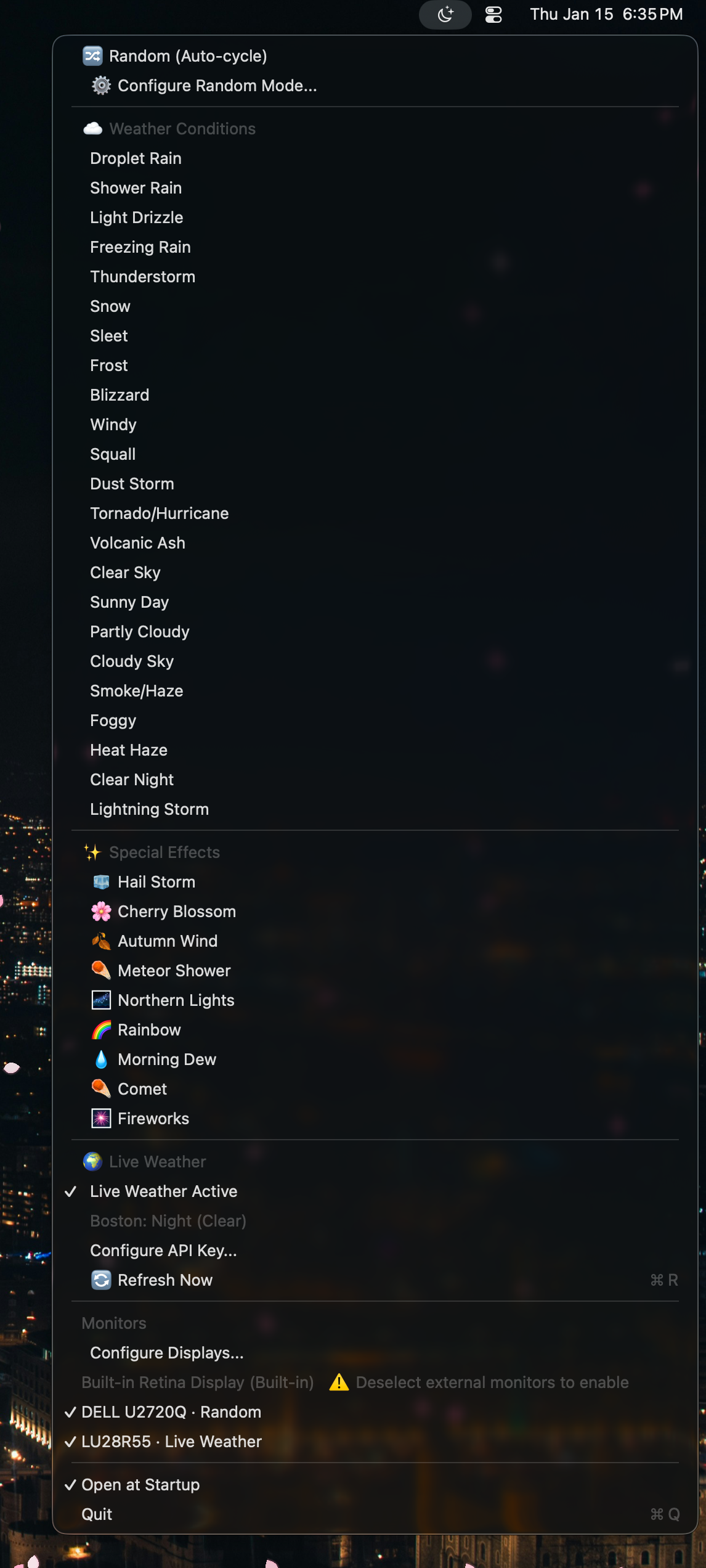
The LumenSky menu bar dropdown with weather modes
That's it! LumenSky runs as a menu bar app with no dock icon.
Trial & License
LumenSky includes a full-feature seven-day trial. The trial starts automatically the first time the app connects to the licensing service. An internet connection is required, and the trial cannot be restarted or extended.
Buy once and receive your key
- Choose Buy Lifetime License — $9.99 in LumenSky.
- Complete checkout on Dodo Payments using an email address you can access.
- After payment, the LumenSky success page displays your license key. Choose Copy and keep the key private.
Activate a purchase
- Copy the license key from the purchase-success page or your Dodo Payments order history.
- Open the LumenSky menu and choose the license status item.
- Paste the key and choose Activate License.
A lifetime license can be active on up to three Macs at once. To move it, choose Deactivate This Mac on the old Mac before activating the replacement. Deactivation removes paid access from that Mac immediately and frees one activation.
Find your key, receipt, or invoice
- Open the LumenSky customer portal.
- Enter the exact email address used at checkout.
- Use the secure link Dodo Payments sends to open your order history.
- Open the LumenSky order to retrieve the license key or download the invoice.
Offline use
Paid licenses work offline for up to seven days after the last successful validation. Connect to the internet before that allowance ends so LumenSky can refresh it. Refunds and manual revocations lock the app as soon as the change is detected online.
Payment and activation problems
| Problem | What to do |
|---|---|
| The payment succeeded but no key appeared | Use the customer portal with the checkout email. If the order is missing, contact support with the Dodo payment ID shown on the receipt. |
| The portal does not recognize the email | Use the exact address entered at checkout, including any aliases or plus-address suffixes. |
| Activation limit reached | Deactivate LumenSky on an old Mac and try again. If that Mac is unavailable, contact support. |
| License Check Required | Connect the Mac to the internet and reopen LumenSky so it can refresh the offline receipt. |
Still stuck? Email support@lumensky.art. Include the purchase email and Dodo payment ID, but never send your complete license key.
Live Weather Setup
LumenSky syncs with your real-world weather through its secure hosted weather service. Apple Weather is the primary source, with automatic provider fallback. No weather account or API key is required.
Enable Live Weather
- Click the LumenSky menu bar icon
- Enable Live Weather
- Allow location access when macOS asks
- Use Refresh Now whenever you want an immediate update
Requirements: Live Weather needs an internet connection and location permission. LumenSky rounds your coordinates to roughly kilometer precision before sending them to its weather service.
URL Hooks (Automation)
Control LumenSky from the Terminal, Shortcuts app, or any automation tool using URL schemes.
Supported Commands
| Action | URL |
|---|---|
| Set weather mode | lumensky://mode/snow |
| Temporary mode (5 sec) | lumensky://mode/fireworks/5 |
| Next random scene | lumensky://next |
| Refresh weather | lumensky://refresh |
| Enable live weather | lumensky://weather/on |
| Disable live weather | lumensky://weather/off |
| Toggle live weather | lumensky://weather |
| Activate a license | lumensky://license/activate?key=YOUR_KEY |
Available Modes
rain, rainShower, snow, hail, wind,
sunny, cloudy, lightning, night,
meteor,
aurora, rainbow, foggy, drizzle,
sleet, frost, dust, thunderstorm,
blizzard, tornado, cherryBlossom, clearSky,
comet, fireworks, confetti, random
Usage Examples
# From Terminal
open "lumensky://mode/aurora"

# Confetti celebration for 5 seconds
open "lumensky://mode/confetti/5"

# Fireworks for 10 seconds
open "lumensky://mode/fireworks/10"

# From AppleScript
do shell script "open 'lumensky://mode/snow'"
Multi-Monitor Setup
LumenSky supports independent scenes on each display.
Configure Displays
- Click the menu bar icon
- Select Configure Displays...
- Drag scene cards onto each monitor
- Mix Live Weather with manual scenes
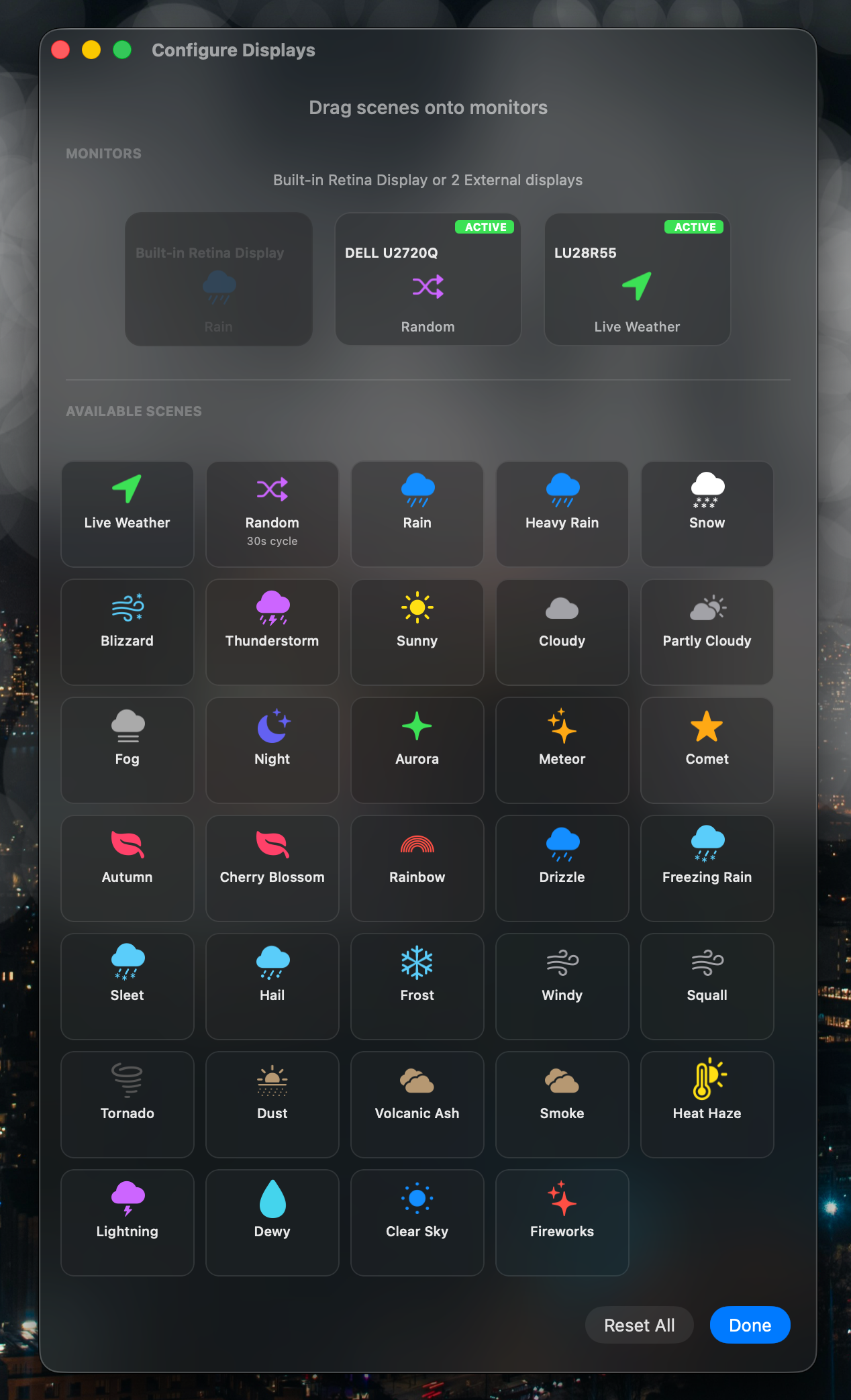
Drag and drop scenes onto your monitor layout
Tip: You can run Aurora on your main display while having Rain on your secondary monitor!
Random Mode
Automatically cycle through different weather scenes at customizable intervals.
Configure Random Mode
- Select Random from the weather modes menu
- Click Configure Random Mode...
- Set your preferred interval (e.g., every 5 minutes)
- Exclude any scenes you don't want in the rotation

Customize your random scene rotation and exclusions
Global Hotkey
Skip to the next random scene from anywhere with a keyboard shortcut.
Configure Shortcut
- Click the menu bar icon
- In Random Mode section, click Configure Shortcut...
- Press your desired key combination (e.g.,
⌘N) - Click Save
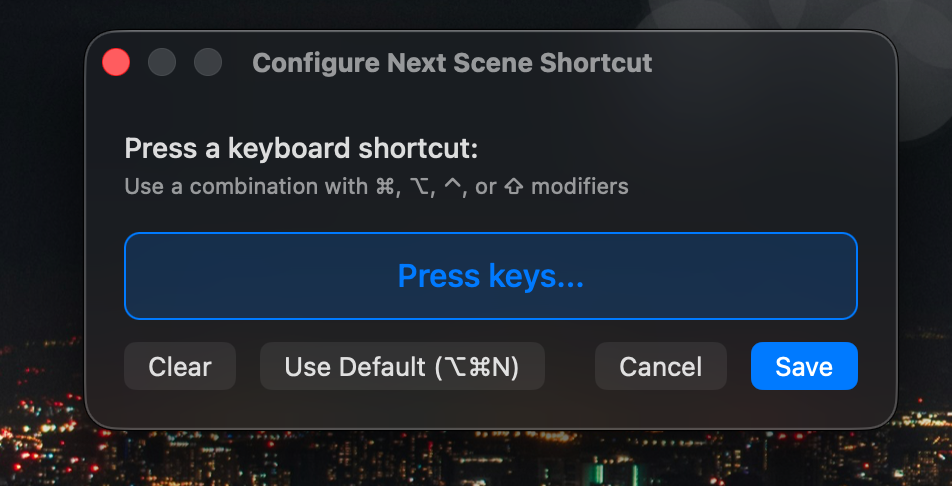
Set a global keyboard shortcut for quick scene switching
The shortcut works globally—even when other apps are focused.
Troubleshooting
Make sure LumenSky is running (check menu bar). Try clicking "Refresh Now" in the menu. On some Macs, you may need to grant Screen Recording permission in System Settings → Privacy & Security.
LumenSky uses your location to fetch weather. Ensure Location Services are enabled in System Settings → Privacy & Security → Location Services. Try "Refresh Now" to force an update.
LumenSky pauses rendering when the screen is locked or the app is covered. If usage is still high, try reducing the number of active displays or switching to simpler scenes like Clear Sky.
Open LumenSky, click the menu bar icon, and enable "Open at Login". If it still doesn't work, check System Settings → General → Login Items.
Do not bypass Gatekeeper. Download a fresh copy from lumensky.art and verify you are installing the signed and notarized release. Contact support if the warning continues.